
This application note shows how to connect Kepware KEPServerEX to Allen-Bradley SLC 5/04 and PLC-5 processors on Data Highway Plus (DH+), using the ANC-100e DH+ to Ethernet gateway or the ANC-120e USB to DH+ converter. KEPServerEX uses its standard Allen-Bradley ControlLogix Ethernet driver; no special driver is needed.
- ANC-120e: install the driver and configure the network adapter (see the ANC-120e User’s Guide), then connect it to the PC and the DH+ network.
- ANC-100e: connect it to the same Ethernet network as the KEPServerEX PC (or directly to the PC) and to the DH+ network (see the ANC-100e User’s Guide).
Step-by-Step Configuration
1. Open KEPServerEX.
2. Right-click the empty space on the left side of the window to create a new channel.

3. Name the new channel as you prefer (Channel2 in this example) and click Next.

4. From the Device driver drop-down list, select Allen-Bradley ControlLogix Ethernet and click Next.

5. From the Network Adapter drop-down list, select the ANC-120e, or the network adapter connected to the same Ethernet network as the ANC-100e, and click Next.

6. Use the default settings for Write Optimizations and click Next.

7. Use the default settings for Non-Normalized Float Handling and click Next.

8. Click Next.

9. Review the Summary and click Finish.

10. Click the new channel to select it, then click Click to add a device.

11. Under Device Name, enter a meaningful name and click Next.

12. From the Device Model drop-down list, select DH+ Gateway: SLC 5/04 and click Next. For a PLC-5 processor, select DH+ Gateway: PLC-5 instead.

13. Under Device ID, enter the path <ANC IP address>,1,1.A.<DH+ node>, including the angle brackets, commas and periods. Example for an ANC-120e at its default IP address talking to DH+ node 1: <192.168.137.2>,1,1.A.1. The ANC-100e’s default IP address is 192.168.0.230. Click Next.

14. Use the default values for Scan Mode and click Next.

15. Use the default values for Timing and click Next.

16. Use the default values for Auto-Demotion and click Next.

17. Use the default values for Database Creation and click Next.

18. Use the default values for ENI DF1/DH+/CN Gtwy Communications Parameters and click Next.

19. Use the default values for SLC Slot Configuration and click Next.

20. Review the Summary and click Finish.

21. Click the new device to select it, then click Click to add a static tag.

22. Enter a meaningful name for the tag in the Name field.
23. Enter a known address of your PLC in the Address field (N7:0 in this example).
24. Select the matching Data type and click OK.

25. You can now test the connection to your PLC on DH+ with the OPC Quick Client.

26. Open Tools → OPC Quick Client, find your tag in the list and confirm the value. In this example, N7:0 holds the value 1616.

This completes the configuration. TOP Server from Software Toolbox is built on the same technology, so the steps are very similar there.
Related guides: Ignition · AVEVA Wonderware · RSLinx Classic and FactoryTalk Linx
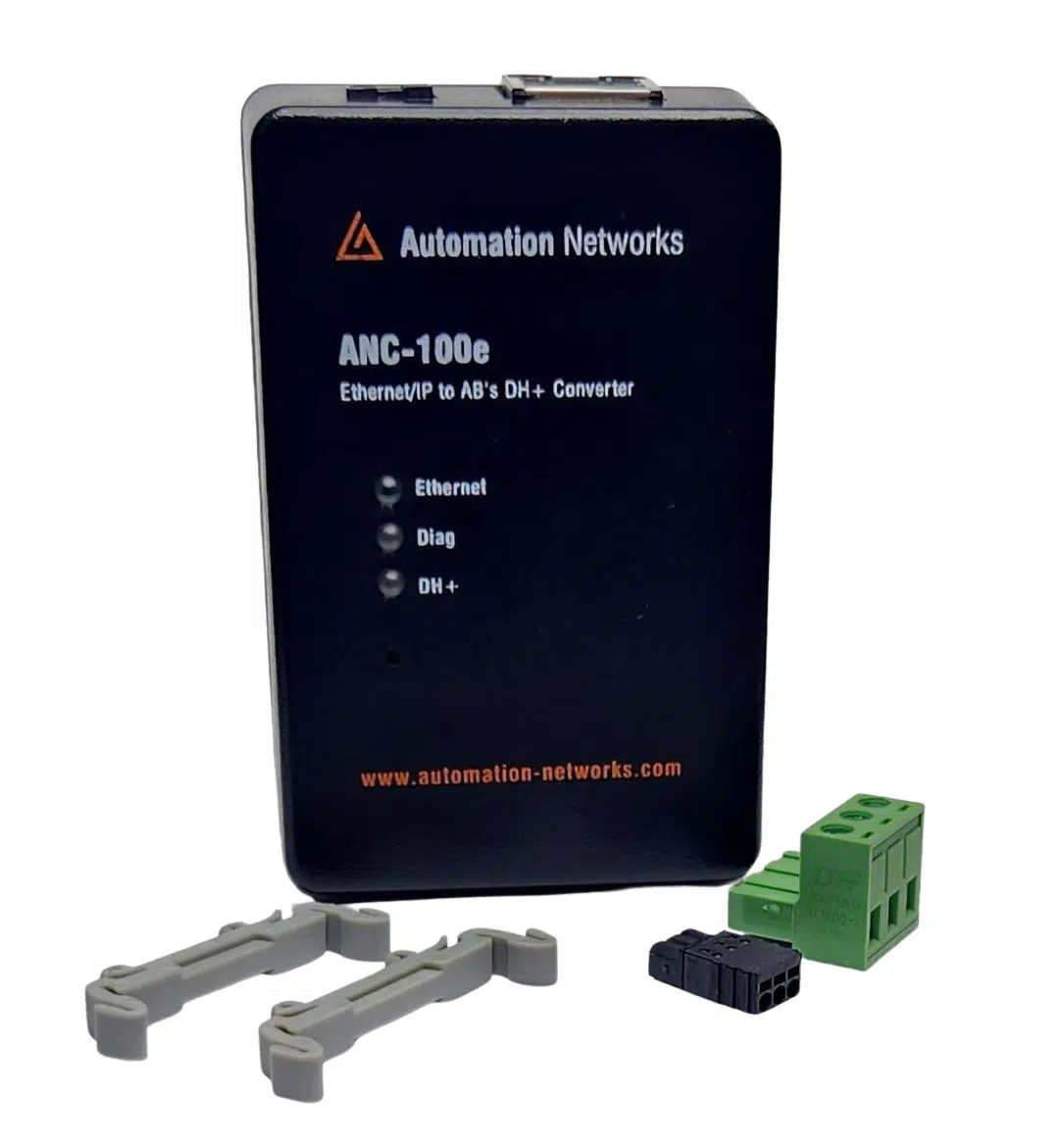
DIN-rail gateway for permanent SCADA, HMI, and PanelView Plus integration to legacy DH+ PLCs.
- • Standalone DH+ gateway architecture
- • Ignition, Kepware & FactoryTalk compatible
- • Lifetime Warranty & 30-day money-back satisfaction guarantee
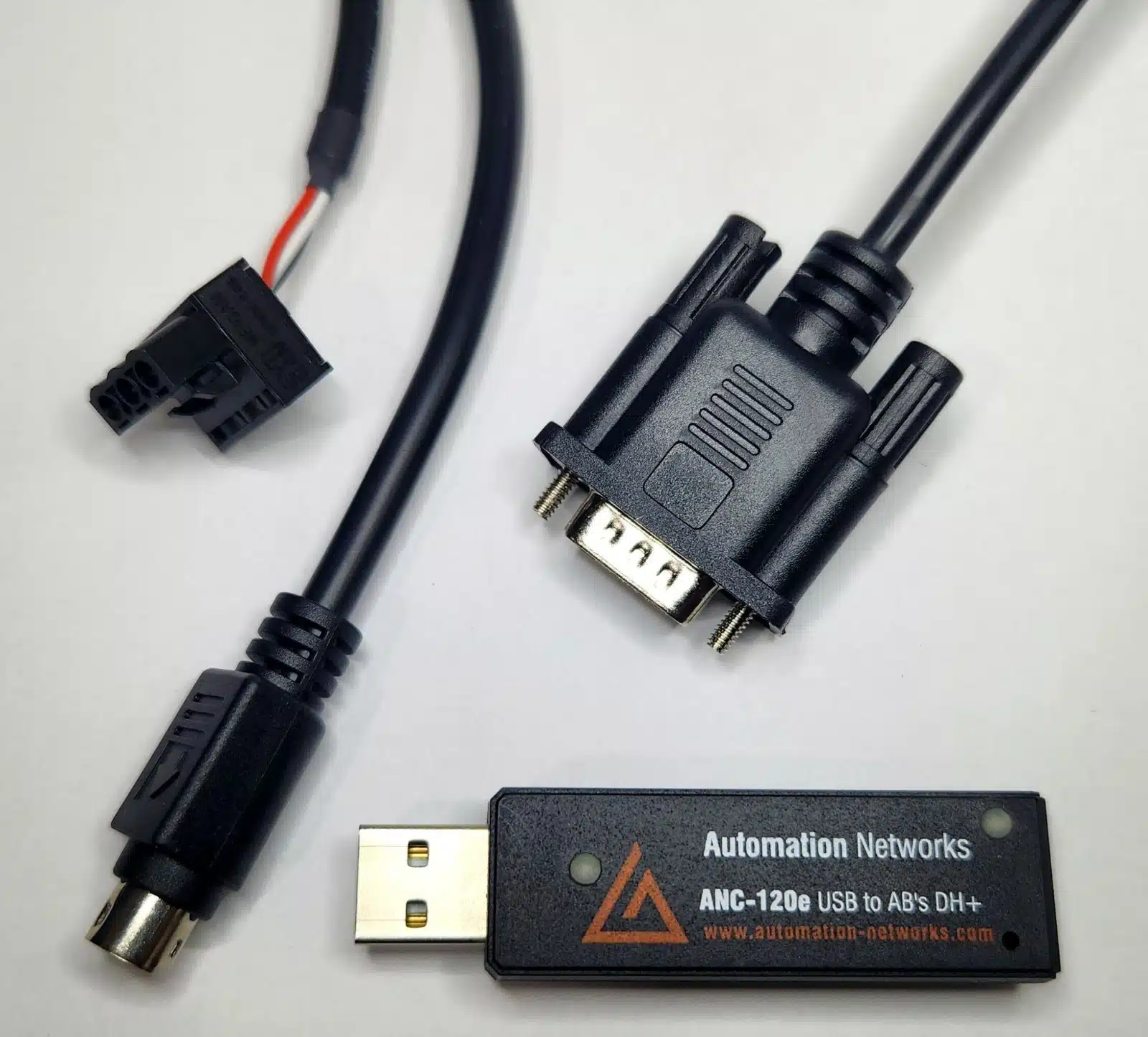
Field-proven 1784-U2DHP alternative. Connect your laptop to PLC-5 and SLC 5/04 controllers via USB on Windows 10 & 11.
- • Windows 10 & 11 (64-bit) native support
- • Cost-effective 1784-U2DHP alternative
- • Auto Baud & Auto Polarity detection